Roblox: a creature for your obby
Make a fig, give it poses and a move, and export a prop that moves on a key press.
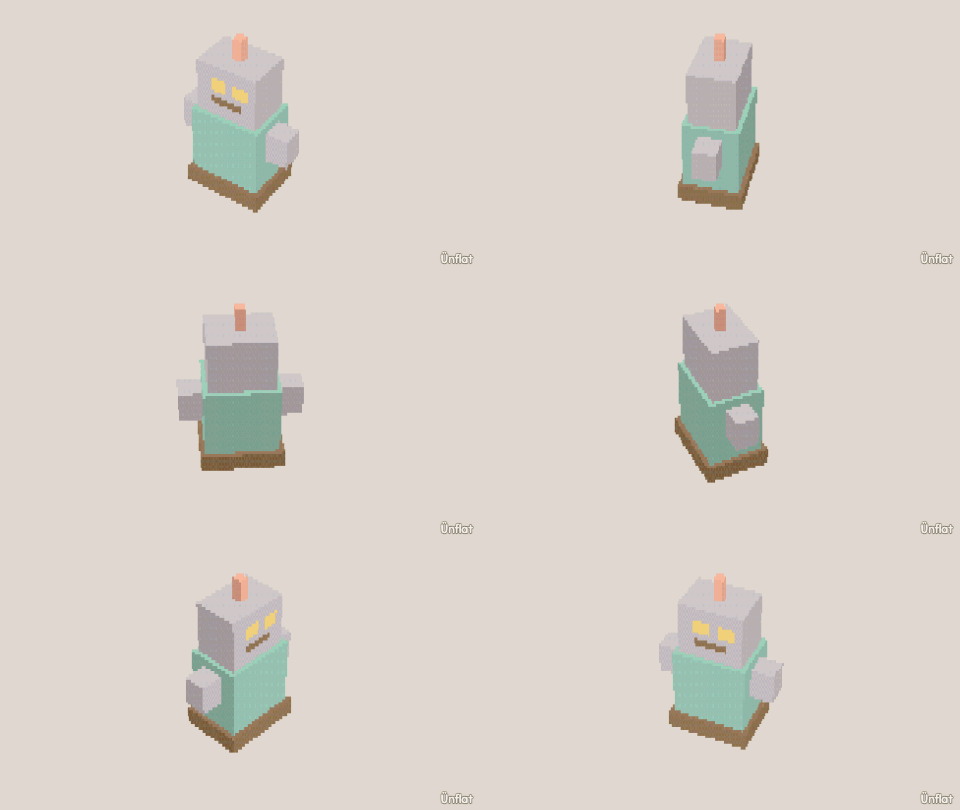
Video coming soon. The written walkthrough below is the whole build.
Written walkthrough
Make a fig with a move and saved poses, and export it as a prop that plays them in a Roblox game. No rigging or scripting; the plugin handles it. You need a computer with Roblox Studio (free) and the Ünflat plugin. No Robux needed.
1. Make the creature
Any fig works (a frog, a shopkeeper, a mailbox). Give it the parts you want moving: a head, arms, a lid.
2. Add a move and poses
Use either or both. A move: in Animate, open Preset moves and go to the Hinge block, the last one on the page. Choose the part under On, or tap it on the fig, then choose its Edge. The part opens when tapped, and that becomes the walk-up action. Saved poses: open Pose by hand, shape the fig, and tap Save as… in the page header. Name the pose, and save a few more.
3. Export the game prop
Open the Share menu and tap For a game: Roblox, .glb, sprites…,
then Roblox. Find the Game prop section. Check the size shows
the fig next to the mannequin; about knee-high to a player is a good size.
Tap Download .lowpoly. The file takes the fig’s name and its kind: a
fig called Frog downloads as Frog_prop.lowpoly. A fig still called
Untitled asks for a name first.
4. Play it in Studio
Plugins › Ünflat › Build a model…, select the file, and press Play. Walk up to the creature. One key plays its move; another applies the next saved pose.