Give your clip sound and words
Record noises per cut, talk over the film, bring your own music and tap its beat.
Video coming soon. The written walkthrough below is the whole build.
Written walkthrough
Give a clip sound and words: your voice, your noises, your own music files. There are no built-in songs. This is the same build as the Sound & Words card in the Learn tab.
1. Open your clip
Open the Camera tab and tap Clip. The scene keeps its strip and your cuts.
2. Give a cut a noise
Tap + Sound on the cut’s page, then Record new. Record the sound yourself (a knock, a meow). From your files takes a sound file instead. The sound plays when that cut starts, and the sound board keeps every take as a key for other cuts.
3. Talk over it
Tap + Narration on the Clip organizer. One take runs across the whole film.
4. Bring your music and set the beat
Tap + Music on the Clip organizer: Record now, or From your files. The Music card opens once the music is added. Tap Tap tempo and tap along. The ♫ chip on the band opens the card again later. With a beat set, cuts hold in beats instead of seconds, so the cuts change on the beat.
5. Add text
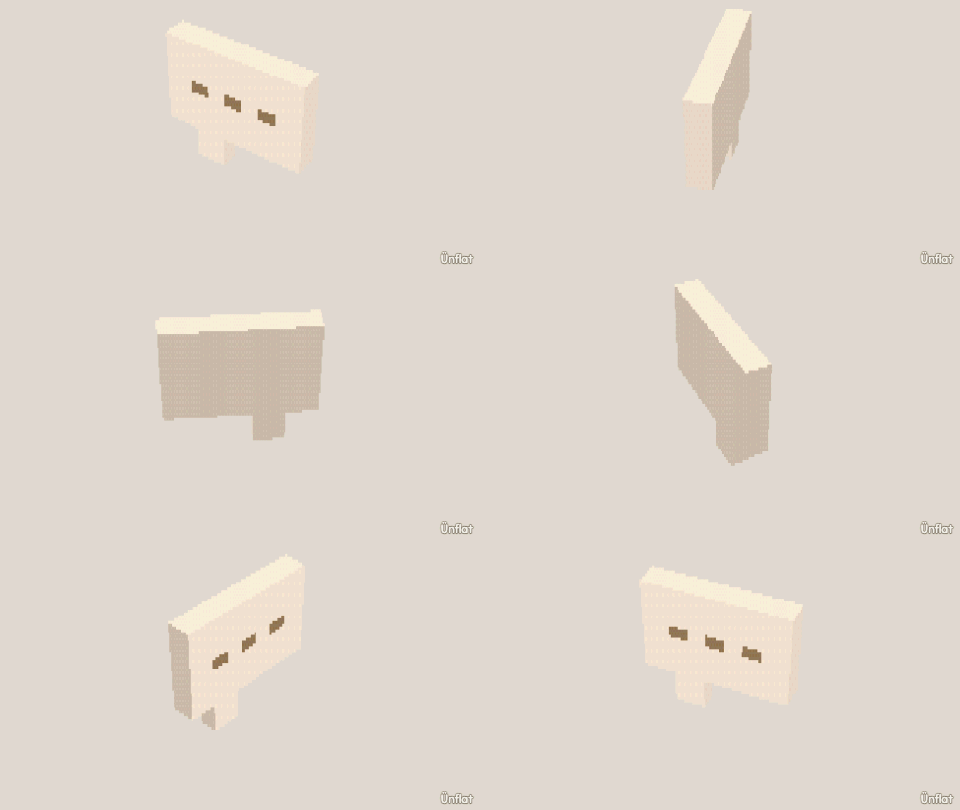
Tap + Story on a cut’s page. Add a piece with + Bubble, + Caption, or + Title, and write what it says. Words show on the film, cut by cut.
A cut’s sound and words are on its page. The song and the narration are on the Clip organizer. The words and sounds are included when a clip is shared.