Make rolling hills
Place a landform on the map, reshape it, and shuffle it until it looks right.
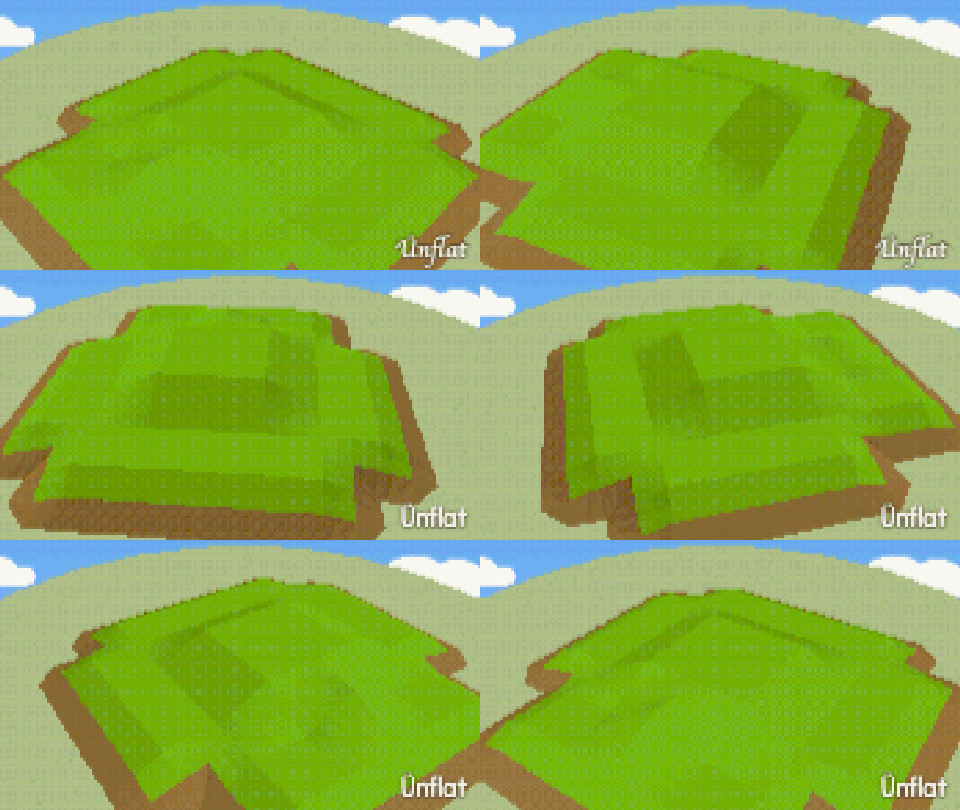
Video coming soon. The written walkthrough below is the whole build.
Written walkthrough
Select a landform shape and tap the map. The whole landform is placed at once. This is the Rolling Hills card in the app’s Learn tab.
1. Open World
In a scene, open the World tab. The map opens with the World tools beside it.
2. Open Land
Tap Land. The eleven landforms are picture tiles: Hills, Peaks, Island, Valley, Meadow, Ridge, Lake, Pond, Plateau, Mesa, Canyon.
3. Place a hill
Select Hills, then tap the map. A landform is placed where you tap. Tap somewhere else for another one.
4. Reshape and shuffle
Tap the landform on the map to select it. Its rows reshape it in place: the Hilly and Rough dials, a Snow line dial for white tops, Edges (Soft, Cliff), and Size (Small up to Huge; Huge needs a Vast stage). Shuffle makes a new shape with the same settings. Top and Sides set what covers the land: grass, stone, or any pattern you own .
Two tool buttons are in the page’s header, beside the red Erase. Raise lifts the squares you drag over by one level. Land steps cuts steps into a slope, so figs can walk up it. Tap one to turn it on, then tap or drag on the map. Tap it again to turn it off.
One row of picture tiles under the dials holds the grounds. Tap a tile, then drag on the map. Grass, Water, Sand, Snow, and Marsh paint the ground, and Yours ▸ paints it with any ground or pattern. Erase removes a square.
Figs rest on the slopes, buildings can cut into them , and paths cross them.