Bring your fig into Unreal Engine
Export a .glb from Ünflat, import it into Unreal, and drop it in a level.
Video coming soon. The written walkthrough below is the whole build.
The model
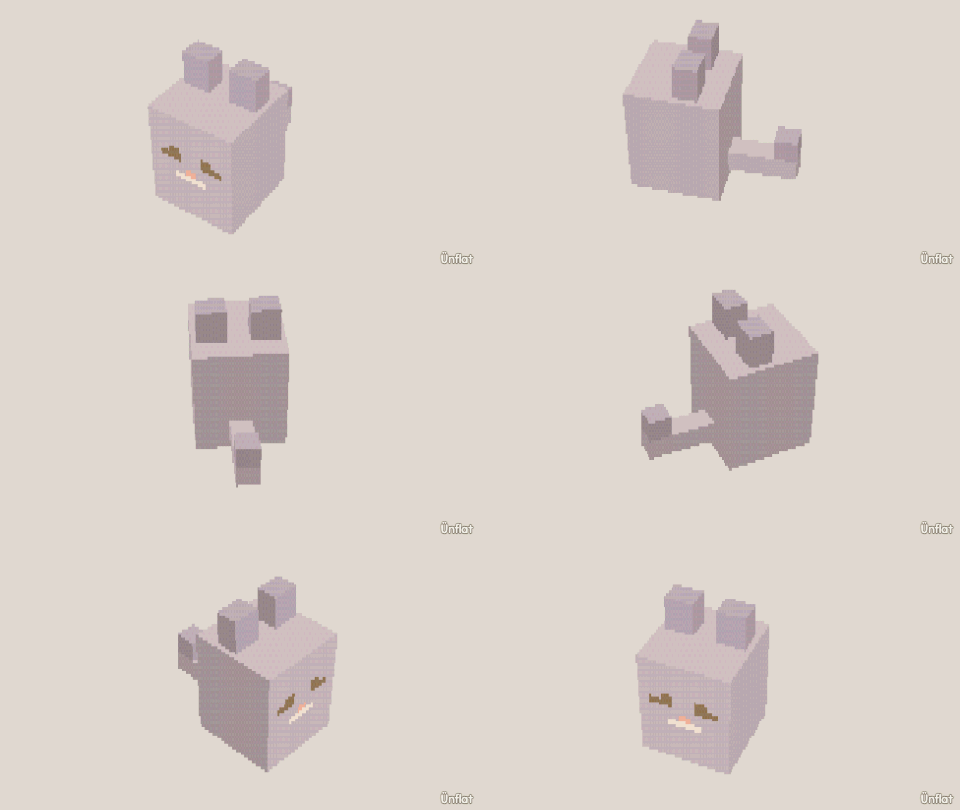
Have a look, or take the .glb.
Written walkthrough
Export a fig from Ünflat and bring it into Unreal Engine as an asset.
1. Export the .glb from Ünflat
Export the .glb with the
Colors & paint chip on so the texture bakes in. You get one .glb
file on your device. Unreal needs only this file.
2. Import the .glb into Unreal
In Unreal, drag the .glb into the Content Browser and accept the
defaults. Unreal creates a static mesh, a material, and the texture in
one step.
3. Connect the baked color texture
Open the generated material and check that the imported texture is connected to Base Color. Set the texture’s filter to Nearest so the pixels stay sharp.
4. Drop it into your level
Drag the mesh into your level. The fig is now a prop you can light, script, and use in a game.